,
Custom Search
Showing posts with label Gadgets. Show all posts

Friday, August 23, 2013

CSS Fix for Watermark Template Pages Gadget

This is the CSS to add to your Template Designer for this problem in only the Watermark Templates. Hopefully Blogger engineering will come up with a template fix that will make this unnecessary in the long run. Thanks TC Adam for finding this!!


.cap-left {
 height: Inherit !Important;
}


Mishka
Official Blog*Star/Blogger TC
Testing Blogger

Tuesday, May 7, 2013

CSS For Centering Pages Gadget

This code seemed to work on both the Simple and Awesome templates. I didn't test it on any others. Obviously the px have to be adjusted depending on the overall widths used on the template and the backgrounds have to be adjusted if they are colored differently from the main background.

This is mostly for my own info so I can find it quickly to reference other users to. Thanks to Yoboy for posting it in a comment on his blog.


#PageList1 ul{
width
: 500px !important;
margin
: auto !important;
display
: block !important;
}


Mishka
Official Blog*Star/Blogger TC
Testing Blogger

Sunday, April 7, 2013

Workaround URL For Managing Reading List

This url should get you to your GFC main page if you need help managing your reading list on Blogger and can't get the link in Blogger's dashboard to work.

http://www.google.com/friendconnect/user/overview

Mishka
Official Blog*Star/Blogger TC
Testing Blogger

Thursday, October 18, 2012

External Links On Pages Gadget Workaround

From another TC on Blogger, posted here for my own reference.
_______________________________________

If you're in the dashboard, go to Pages. Create your links out like you normally would. After hitting save you'll see that it seems to be replacing what you've submitted with "javascript;;"

Now go to your site. Click on the wrench/screwdriver icon for editing your Pages gadget. It opens up the normal re-arrange window. Now hit save and the window closes.

Refresh your blog window.

If you mouse over your pages, you'll see that external link work now.
_______________________________________

Mishka
Official Blog*Star/Blogger TC
Testing Blogger

Tuesday, April 10, 2012

Conditional Tag for Home Page Only

Just wanted to note this for reference.


Mishka
Official Blog*Star/Blogger TC
Testing Blogger

Saturday, June 11, 2011

FAQ: How To Remove +1 From Share Icons

NOTE: These instructions are for those that are using the newest template designer templates from Blogger. I can't guarantee that this will work with third party templates and/or other versions of the Blogger template (layouts or classic).

At first I was going to leave the +1 icon in, but decided after learning more about it, that it wasn't something I wanted on my blog, even though I wanted the other "share" icons to remain. So yesterday, I started looking at the code and figured out how to get rid of just that icon and leave the rest functioning.

First off, you need to go to the edit html page of your blog Design area. This will bring up the template code window for your blog. Make sure you make a back up of your template at this time by using the link provided on the page. This is just so you can revert back in case you delete more than you should while following these steps.

Next, you need to click the check box near the top of the html window that says "expand widgets". You need to do this in order to see the code that has to be removed.

Now you need to scroll down until you see the area of the blog code that is inside this screen shot of my blog's template(click on image for larger view), and cut out the area highlighted in blue. Only that area, and nothing else. Make sure you save the template after you have cut the code out.
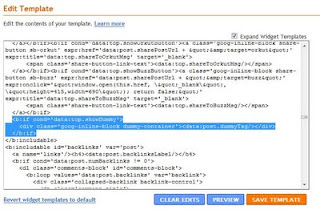


Now when you view the blog, the rest of the share buttons still show (assuming you have them turned on in the blog post widget), but the +1 icon will be gone.

Mishka
Official Blog*Star
Testing Blogger

Tuesday, March 16, 2010

FAQ: Redirect or Content On Blog Not Put By Owner

It is not a virus. It is malicious code from a third party gadget you have on your blog. Best thing is to remove any third party gadgets you have added to your blog in the last few months one at a time until the problem goes away...this way you can narrow down the one that is causing the problem.

If you can't remove them using the layout page, we suggest editing them out of the template html but you will need to back up your template before attempting this just to be safe.

Mishka
Official Blog*Star
Testing Blogger

Sunday, December 16, 2007

Text for Answering the Comment and Blog Post Widget Issue

Check to make sure the comments are turned on in all three places:
1. On the post options below the post editing window in the post editor
2. On the layout page, if you click on the edit link on the post box (the big one in the middle)
3. On the comments page in your blog settings.

If you have turned all on and cleared your cache and cookies and reloaded the page and they still don't show up, then you might have corrupt blog post widget and Bonnie has a fix for that on her blog.

http://howcanidothat.blogspot.com/2007/08/resetting-blog-widget.html

Mishka
Testing Blogger

Wednesday, April 11, 2007

Button HTML

Thought I would post the html here for making a button so I could access it easier than having to go to my widget code everytime.


Mishka
Testing Blogger

Wednesday, April 4, 2007

FAQ: Creating a New About Me Element Updated April 2011

Make a post just like you would any other post on your blog, but use it as place to put your profile info. You can put links (using the hyperlink funtion) in there, any text you want to include and a picture as well. You can even put links to your other blogs if you wish. Then publish it, give it a date back in the past if you don't want to show up on your main front page. Note the URL of this particular post.

Now go to your page layout/design page (assuming you are using the new templates and not the old classic version). Go to your actual About Me box (the one there by default), and click on the remove page element. It will remove it from this blog only, not any of your others (you can do this at the end if you want to test it out first to make sure you are happy with the results). Then click on Add a Page Element to your sidebar. Pick the HTML/Javascript one. Put in the title space, ABOUT ME or MY PROFILE.

In the text area, put in this Save changes.

This will create a link to the post that you created about yourself with the words My Complete Profile in a sidebar box on your main page. Now your new box will substitute for the default About Me.

Mishka
Testing Blogger